Friday, 15 May 2015

OpenGL : Making Spirals
What is a spiral ?
A curve on a plane that winds around a fixed center point at a continuously increasing or decreasing distance from the point.
How to draw it using OpenGL?
Prerequisites : Running a basic OpenGL code.
Making spiral in OpenGL is quite simple because we have the mathematical equations for both the x and y coordinates of the Spiral.
In this example we will go with the logarithmic and the archimedean spiral.
Snapshot of completed code :

Coordinates for logarithmic spiral


Code-Snippet in C++ (OpenGL)
Here a and b are the constants of the equation. You can call the function inside you display in you OpenGL code. Download the complete code from this link.
A curve on a plane that winds around a fixed center point at a continuously increasing or decreasing distance from the point.
A two-dimensional spiral may be described most easily using polar coordinates, where the radius r is a monotonic continuous function of angle θ. The circle would be regarded as a degenerate case (the function not being strictly monotonic, but rather constant).
Some of the more important sorts of two-dimensional spirals include:
- The Archimedean spiral:

- The Euler spiral, Cornu spiral or clothoid
- Fermat's spiral:

- The hyperbolic spiral:

- The lituus:

- The logarithmic spiral:
 ; approximations of this are found in nature
 - The Fibonacci spiral and golden spiral: special cases of the logarithmic spiral
Prerequisites : Running a basic OpenGL code.
Making spiral in OpenGL is quite simple because we have the mathematical equations for both the x and y coordinates of the Spiral.
In this example we will go with the logarithmic and the archimedean spiral.
Snapshot of completed code :

Coordinates for logarithmic spiral
Here a and b are the constants of the equation. You can call the function inside you display in you OpenGL code. Download the complete code from this link.
void DrawSpiral(double a,double b)
{
 double x, y;

 theta = 0;
 x = a*pow(2.718281,(double)b*theta)*cos(theta);
 y = a*pow(2.718281,(double)b*theta)*sin(theta);
 for (int i = 0; i < 1000; i++)
 {
  glBegin(GL_LINES);
  theta = 0.025*i;
  glVertex2f((GLfloat)x, (GLfloat)y);
  glVertex2f(a*pow(2.718281, (double)b*theta)*cos(theta), a*pow(2.718281, (double)b*theta)*sin(theta));

  //glColor3f(r, g, b);
  x = a*pow(2.718281, (double)b*theta)*cos(theta);
  y = a*pow(2.718281, (double)b*theta)*sin(theta);

  glEnd();
 }

}
Monday, 11 May 2015
C# : Making a desktop weather application.
Weather application
It is an application which gives you the details of the present weather such as temperature conditions, wind speed, humidity etc. It also provides a brief forecast for the weather ahead.
How to proceed
Prerequisite :
Basics for making form based application in C# .
Step 1 :
Get through any API, which provides weather details either in JSON or XML format. (for ex Yahoo Weather API ,OpenWeatherAPI etc).
This application uses the yahoo weather API. Here we are retrieving an XML sheet from yahoo demanding the weather and conditions . XML sheet of Yahoo weather can be accessed though the following link
http://weather.yahooapis.com/forecastrss?w=2294864
where 2294864 is woeid number of the city assigned by Yahoo. You can find out woeid of your own city from the woeid lookup . In this project I am using the same link as give above.
Step 2 :
Write program to read the required details from JSON or XML file and store the values for the further use in your application. In this application we are using XMLReader class of C# for collecting the information from the XML sheet.
Step 3 :
Retrive the stored data and display it on your GUI(Graphical User Interface) by formatting.
Project and Code
Set Up GUI
You may prefer developing your own GUI. Given below is a demo GUI layout which is being used by my program. If you want to copy the code then you should develop the same GUI as given in the layout.

Items in GUI
1. comboBox1 - for selecting city from a list or to enter woeid.
2. button1 - for refreshing the screen.
3. button2 - for closing the application.
4. label2, label20 - for displaying name of city and country.
5. pictureBox1 - displaying icon for present weather condition.
6. label1, label10, label9 - displaying present temperature.
7. label3 to label8 - displaying various parameters of weather
8. pictureBox1, pictureBox3 to pictureBox5 - displaying icons for weather forecast of consecutive days
9. label12 to label27 - displaying various parameters for weather condition of consecutive days
10. label11 - displaying the last updated time.
Extra Include Files
Icons
You may download any set of icons which you want to display in your GUI. In this project I am using VClouds Weather Icons set form Deviantart. You may also download the same. Note the name of the icons must be in accordance to the weather codes (Alternative Link).
Weather codes are different weather conditions assigned as a number which is given by Yahoo in the XML sheet according to the weather condition , such as 32 for sunny day 36 for hot day. Like this there are 47 weather condition codes and 3200 is returned when data is not available and you should have 47 icons for each weather condition + 1 icon for not available :P.
Final Code
//In the given program ../Pics/ is the folder where weather icons are stored
Demo Screen Shot of the completed Application. You can customize GUI according to your own choice.
 For queries feel free to comment or mail me.
It is an application which gives you the details of the present weather such as temperature conditions, wind speed, humidity etc. It also provides a brief forecast for the weather ahead.
How to proceed
Prerequisite :
Basics for making form based application in C# .
Step 1 :
Get through any API, which provides weather details either in JSON or XML format. (for ex Yahoo Weather API ,OpenWeatherAPI etc).
This application uses the yahoo weather API. Here we are retrieving an XML sheet from yahoo demanding the weather and conditions . XML sheet of Yahoo weather can be accessed though the following link
http://weather.yahooapis.com/forecastrss?w=2294864
where 2294864 is woeid number of the city assigned by Yahoo. You can find out woeid of your own city from the woeid lookup . In this project I am using the same link as give above.
Step 2 :
Write program to read the required details from JSON or XML file and store the values for the further use in your application. In this application we are using XMLReader class of C# for collecting the information from the XML sheet.
String st = String.Format(@"http://weather.yahooapis.com/forecastrss?w=2294864"); //URL string. In this string 2294864 is woeid of city.
XmlDocument wData = new XmlDocument();        //creating new XML document
wData.Load(st);  //laoding XML file from URL
XmlNamespaceManager manager = new XmlNamespaceManager(wData.NameTable); // loading namespace manager
manager.AddNamespace("yweather", @"http://xml.weather.yahoo.com/ns/rss/1.0");
XmlNode channel = wData.SelectSingleNode("rss").SelectSingleNode("channel");  //selecting a particular node
string temperature = channel.SelectSingleNode("item").SelectSingleNode("yweather:condition",manager).Attributes["temp"].Value; //selecting an Attribue
Step 3 :
Retrive the stored data and display it on your GUI(Graphical User Interface) by formatting.
Project and Code
Set Up GUI
You may prefer developing your own GUI. Given below is a demo GUI layout which is being used by my program. If you want to copy the code then you should develop the same GUI as given in the layout.
Items in GUI
1. comboBox1 - for selecting city from a list or to enter woeid.
2. button1 - for refreshing the screen.
3. button2 - for closing the application.
4. label2, label20 - for displaying name of city and country.
5. pictureBox1 - displaying icon for present weather condition.
6. label1, label10, label9 - displaying present temperature.
7. label3 to label8 - displaying various parameters of weather
8. pictureBox1, pictureBox3 to pictureBox5 - displaying icons for weather forecast of consecutive days
9. label12 to label27 - displaying various parameters for weather condition of consecutive days
10. label11 - displaying the last updated time.
Extra Include Files
using System.Web;          //for connecting to web
using System.Xml.Linq;     //for XML
using System.Xml;
Icons
You may download any set of icons which you want to display in your GUI. In this project I am using VClouds Weather Icons set form Deviantart. You may also download the same. Note the name of the icons must be in accordance to the weather codes (Alternative Link).
Weather codes are different weather conditions assigned as a number which is given by Yahoo in the XML sheet according to the weather condition , such as 32 for sunny day 36 for hot day. Like this there are 47 weather condition codes and 3200 is returned when data is not available and you should have 47 icons for each weather condition + 1 icon for not available :P.
Final Code
//In the given program ../Pics/ is the folder where weather icons are stored
using System;
using System.Collections.Generic;
using System.ComponentModel;
using System.Data;
using System.Drawing;
using System.Linq;
using System.Text;
using System.Windows.Forms;
using System.Web;
using System.Xml.Linq;
using System.Xml;

namespace WeatherApp
{
    public partial class Form1 : Form
    {

        string Temperature;
        string Condition;
        string Humidity;
        string Windspeed;
        string Town;
        string Region;
        string Country;
        string Code;
        string Local;
        string woeid;
        string LastUpdate;
        string[] next_day=new string[10];
        string[] next_cond = new string[10];
        string[] next_condt = new string[10];
        string[] next_high = new string[10];
        string[] next_low = new string[10];

        public Form1()
        {
            InitializeComponent();
            woeid = "2294864";
            getWeather();
            label1.Text = Temperature;
            label2.Text = Town+", "+Region;
            label6.Text = Condition;
            label7.Text = Humidity;
            label8.Text = Windspeed;
            label10.Text = string.Format("\u00B0")+ "F";
            label12.Text = next_day[1];
            label15.Text = next_day[2];
            label17.Text = next_day[3];
            label19.Text = next_day[4];
            label20.Text = Country;
            label13.Text = next_condt[1];
            label14.Text = next_condt[2];
            label16.Text = next_condt[3];
            label18.Text = next_condt[4];

            label21.Text = next_high[1] + string.Format("\u00B0") + "F";
            label24.Text = next_high[2] + string.Format("\u00B0") + "F";
            label26.Text = next_high[3] + string.Format("\u00B0") + "F";
            label28.Text = next_high[4] + string.Format("\u00B0") + "F";
            label22.Text = next_low[1] + string.Format("\u00B0") + "F";
            label23.Text = next_low[2] + string.Format("\u00B0") + "F";
            label25.Text = next_low[3] + string.Format("\u00B0") + "F";
            label27.Text = next_low[4] + string.Format("\u00B0") + "F";
            setIcons();
            setIcon();

            comboBox1.Items.Add("Berhampur");
            comboBox1.Items.Add("Bhubaneshwar");
            comboBox1.Items.Add("Delhi");
            comboBox1.Items.Add("Kolkata");
            comboBox1.Items.Add("Mumbai");
            comboBox1.Items.Add("Chennai");
            comboBox1.Items.Add("Rourkela");
            comboBox1.Items.Add("New York");
            comboBox1.Items.Add("Los Angeles");
            comboBox1.Items.Add("London");
            comboBox1.Items.Add("Paris");
        }

        private void setIcons()
        {
            pictureBox1.Image = Image.FromFile(getString(next_cond[1]));
            pictureBox3.Image = Image.FromFile(getString(next_cond[2]));
            pictureBox4.Image = Image.FromFile(getString(next_cond[3]));
            pictureBox5.Image = Image.FromFile(getString(next_cond[4]));
        }

        private string getString(string code)
        {
            if(code.Equals("3200"))
            {
                return "../Pics/na.png";
            }
            else
            {
                return "../Pics/" + code + ".png";
            }
        }
        private void setIcon()
        {
            if(Code.Equals("3200"))
            {
                pictureBox2.Image = Image.FromFile("../Pics/na.png");
            }
            else
            {
                string st = "../Pics/"+Code+".png";
                pictureBox2.Image = Image.FromFile(st);
            }
        }
        private void getWeather()
        {
            String st = String.Format(@"http://weather.yahooapis.com/forecastrss?w=");
            st = st + woeid;
            XmlDocument wData = new XmlDocument();
            wData.Load(st);
            XmlNamespaceManager manager = new XmlNamespaceManager(wData.NameTable);
            manager.AddNamespace("yweather", @"http://xml.weather.yahoo.com/ns/rss/1.0");
            XmlNode channel = wData.SelectSingleNode("rss").SelectSingleNode("channel");
            Temperature = channel.SelectSingleNode("item").SelectSingleNode("yweather:condition",manager).Attributes["temp"].Value;
            Condition = channel.SelectSingleNode("item").SelectSingleNode("yweather:condition",manager).Attributes["text"].Value;
            Code = channel.SelectSingleNode("item").SelectSingleNode("yweather:condition", manager).Attributes["code"].Value;
            Humidity = channel.SelectSingleNode("yweather:atmosphere", manager).Attributes["humidity"].Value;
            Windspeed = channel.SelectSingleNode("yweather:wind", manager).Attributes["speed"].Value;
            Town = channel.SelectSingleNode("yweather:location", manager).Attributes["city"].Value;
            Region = channel.SelectSingleNode("yweather:location", manager).Attributes["region"].Value;
            Country = channel.SelectSingleNode("yweather:location", manager).Attributes["country"].Value;
            Local = channel.SelectSingleNode("item").SelectSingleNode("title", manager).InnerXml;
            LastUpdate = channel.SelectSingleNode("item").SelectSingleNode("pubDate", manager).InnerXml;
            XmlNodeList forecast = channel.SelectSingleNode("item").SelectNodes("yweather:forecast", manager);

            for(int i=0;i<forecast.Count;i++)
            {
                next_day[i] = forecast[i].Attributes["day"].Value;
                next_cond[i] = forecast[i].Attributes["code"].Value;
                next_condt[i] = forecast[i].Attributes["text"].Value;
                next_high[i] = forecast[i].Attributes["high"].Value;
                next_low[i] = forecast[i].Attributes["low"].Value;
            }

            label11.Text = "Last Updated on : " + LastUpdate ;
            double x = (Double.Parse(Temperature)-32) * 5.0/9.0;
            x = (int)x;
            label9.Text = x.ToString() +" "+ string.Format("\u00B0") + "C";
        }
        private void button2_Click(object sender, EventArgs e)
        {
            Application.Exit();
        }

        private void button1_Click(object sender, EventArgs e)
        {
            switch(comboBox1.Text)
            {
                case "Berhampur": woeid = "2295220"; break;
                case "Bhubaneshwar": woeid = "2294941"; break;
                case "Delhi": woeid = "2295019"; break;
                case "Chennai": woeid = "2295424"; break;
                case "Kolkata": woeid = "2295386"; break;
                case "Rourkela": woeid = "2294864"; break;
                case "Los Angeles": woeid = "2442047"; break;
                case "London": woeid = "44418"; break;
                case "Paris": woeid = "615702"; break;
                case "New York": woeid = "2459115"; break;
                default: woeid = comboBox1.Text; break;
            }
            getWeather();
            label1.Text = Temperature;
            label2.Text = Town + ", " + Region;
            label6.Text = Condition;
            label7.Text = Humidity;
            label8.Text = Windspeed;
            label10.Text = string.Format("\u00B0") + "F";
            label12.Text = next_day[1];
            label15.Text = next_day[2];
            label17.Text = next_day[3];
            label19.Text = next_day[4];
            label20.Text = Country;
            label13.Text = next_condt[1];
            label14.Text = next_condt[2];
            label16.Text = next_condt[3];
            label18.Text = next_condt[4];
            setIcons();
            setIcon();
        }
    }


}
Demo Screen Shot of the completed Application. You can customize GUI according to your own choice.
Sunday, 10 May 2015
OpenGL : Making cool SpiroGraph visualization
Spirograph is a geometric drawing toy that produces mathematical roulette curves of the variety technically known as hypotrochoidsand epitrochoids.
Here are some snippets how the completed code executes :


Here are some snippets how the completed code executes :


How to proceed ?
Its simple beacuse spirographs actually do have mathematical equations for their locus on the graph. So the code almost get simplified to two equations for x and y coordinates and can be plotted easily using OpenGL.
Prerequisites :
An IDE for developing and running OpenGL code.
Equations :

Here x and y are the coordinates of the locus of the spirograph. You can find more infromation about these equations on Wikipedia.
Next Steps :
Now after getting the equations we just have to randomize the variables so that we can get a visualization effect.
Code in OpenGL (C++) :
#include<stdlib.h>

#include<math.h>

#include<GL/glut.h>


int speed = 1;

static GLfloat theta = 0.0, theta2 = 0.0;

int axis = 1;

float translate_x = 0, translate_y = 0;

float Rg = 1.0, rg = 0.7, rhog = 0.3 , speed2 = 0.1;

float trig = 0.001;

float r_C=1.0f, g_C=1.0f, b_C=1.0f;

void DrawSpiro(float R, float r, float rho)

{

 float t = 0.0;

 float x = 0.0f, y = 0.0f , x1 = 0.0f, y1 = 0.0f;

 int count = 100;

 glBegin(GL_LINES);


 r_C = (rand() % 100 + 10)*0.01;

 g_C = (rand() % 100 + 10)*0.01;

 b_C = (rand() % 100 + 10)*0.01;

 x1 = (R - r)*cos(t) + rho*cos(((R - r) / r)*t);

 y1 = (R - r)*sin(t) + rho*sin(((R - r) / r)*t);

 for (int i = 0; i < 1000; i++)

 {

  /*if (count == 0)

  {

   r_C = (rand() % 100 + 10)*0.01;

   g_C = (rand() % 100 + 10)*0.01;

   b_C = (rand() % 100 + 10)*0.01;

  }*/

  t = i*speed2;

  x = (R - r)*cos(t) + rho*cos(((R - r) / r)*t);

  y = (R - r)*sin(t) + rho*sin(((R - r) / r)*t);

  //count++;

  glColor3f(r_C, g_C, b_C);

  glVertex2f(x1, y1);

  glVertex2f(x , y);

  x1 = x;

  y1 = y;

 }


 glEnd();

}


void display(void)

{

 // display callback , clear frame buffer an Z buffer ,rotate cube and draw , swap buffer.

 glClear(GL_COLOR_BUFFER_BIT | GL_DEPTH_BUFFER_BIT);

 glLoadIdentity();

 glRotatef(theta, 0.0, 0.0, 1.0);

 DrawSpiro(Rg, rg, rhog);

 glutSwapBuffers();

}

void spinCube()

{

 // idle callback,spin cube 2 degreees about selected axis


 theta += (0.001*speed);

 theta2 += 0.002*speed;

 if (theta>360.0)

  theta -= 360.0;


 if (theta2>360.0)

  theta2 -= 360.0;


 if (axis == 1)

 {

  if (Rg <= -2.0)

  {

   trig = 0.0001;

  }

  if (Rg >= 2.0)

  {

   trig = -0.0001;

  }

  Rg += trig;

 }

 else if (axis == 2)

 {

  if (rg <= -2.0)

  {

   trig = 0.0001;

  }

  if (rg >= 2.0)

  {

   trig = -0.0001;

  }

  rg += trig;


 }

 else

 {

  if (rhog <= -2.0)

  {

   trig = 0.01;

  }

  if (rhog >= 2.0)

  {

   trig = -0.01;

  }

  rhog += trig;


 }

 glutPostRedisplay();

}

void mouse(int btn, int state, int x, int y)

{

 //mouse calback ,select an axis about which to rotate

 if (btn == GLUT_LEFT_BUTTON && state == GLUT_DOWN) axis = 0;

 if (btn == GLUT_MIDDLE_BUTTON && state == GLUT_DOWN) axis = 1;

 if (btn == GLUT_RIGHT_BUTTON && state == GLUT_DOWN) axis = 2;


}


void processKeys(unsigned char key, int x, int y) {


 switch (key)

 {

 case 'w': speed += 1; break;

 case 's': speed -= 1; break;

 case 'c': axis = 1; break;

 case 'v': axis = 2; break;

 case 'b': axis = 3; break;

 }

}


void myReshape(int w, int h)

{

 glViewport(0, 0, w, h);

 glMatrixMode(GL_PROJECTION);

 glLoadIdentity();

 glOrtho(-2.0, 2.0, -2.0, 2.0, -10.0, 10.0);

 glMatrixMode(GL_MODELVIEW);

}

int main(int argc, char** argv)

{

 glutInit(&argc, argv);

 //need both double buffering and Zbuffer

 glutInitDisplayMode(GLUT_DOUBLE | GLUT_RGB | GLUT_DEPTH);

 glutInitWindowSize(800, 800);

 glutCreateWindow("Rotating a color cube ");

 glutReshapeFunc(myReshape);

 glutDisplayFunc(display);

 glutIdleFunc(spinCube);

 glutMouseFunc(mouse);

 glutKeyboardFunc(processKeys);

 glEnable(GL_DEPTH_TEST);  //Enable hidden surface removal

 glutMainLoop();

 return 0;

}
For this program Keys W and S are responsible for increasing and decreasing the speed and keys C, V and B are responsible for changing parameters R , r and rho of the program
Friday, 9 January 2015
C# : Dowloading android quiz game answers using simple script.
Lot of android games are based on quiz such as Logo Quiz, Think app, 4 pics 1 word etc. We sometime struggle to find the answers so we browse internet but there also the sites have a hell lot of pages , such as one page for each level, but as questions are randomly generated we might have to go through a lot of pages for searching a particular answer. So here there is a simple script so that you can download all the images(i.e answers) at once.
How to proceed ?
Few sites like game-solver.com have answers in form of picture. Each picture for each level is represented by number of the level such as 1.jpg for level 1 , 2.jpg for level 2 and so on. So in C# we can write a simple code which downloads all these images by just editing the URL all the time.
Software Requirements : Visual C# or Visual Studio or any C# compiler.
Code :
First go to any game solving site. game-solver.com is the best one I think.
First get the URL of the image to be downloaded by clicking on the image. Save the URL for use in the program. In this code I am downloading the images for the Think app.
http://game-solver.com/wp-content/uploads/2014/03/Think-Chapter-1.jpg
above is URL for the answers of the first level of the Think game. Note the image URL is like Think-Chapter-1.jpg for chapter 2 it would be like Think-Chapter-2.jpg and so on.
C# provides inbuilt facilities for interacting with web and performing operations such as downloading files etc.
Include files :
Segement for downloading :
In the above code 1st string is downloading URL and the second string is the directory where you want to save the file.
Complete code
How to proceed ?
Few sites like game-solver.com have answers in form of picture. Each picture for each level is represented by number of the level such as 1.jpg for level 1 , 2.jpg for level 2 and so on. So in C# we can write a simple code which downloads all these images by just editing the URL all the time.
Software Requirements : Visual C# or Visual Studio or any C# compiler.
Code :
First go to any game solving site. game-solver.com is the best one I think.
First get the URL of the image to be downloaded by clicking on the image. Save the URL for use in the program. In this code I am downloading the images for the Think app.
http://game-solver.com/wp-content/uploads/2014/03/Think-Chapter-1.jpg
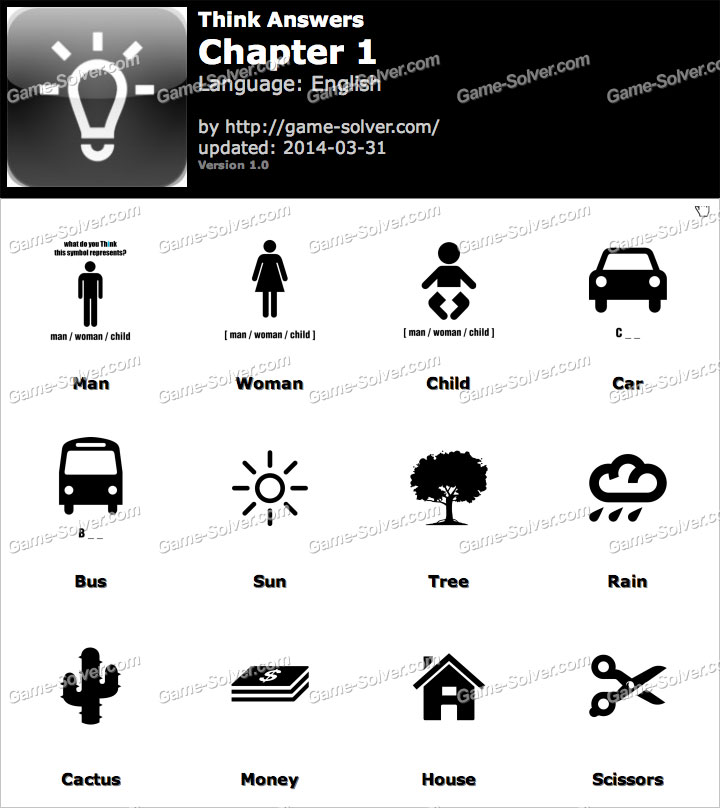
above is URL for the answers of the first level of the Think game. Note the image URL is like Think-Chapter-1.jpg for chapter 2 it would be like Think-Chapter-2.jpg and so on.
C# provides inbuilt facilities for interacting with web and performing operations such as downloading files etc.
Include files :
using System.Net;
using System.Web;
Segement for downloading :
webClient.DownloadFile("http://game-solver.com/wp-content/uploads/2013/05/Logo-Quiz-Game-Level-"+i+".jpg", @"E:\"+i+".jpg");
   // downloading URL                //Directory to download
In the above code 1st string is downloading URL and the second string is the directory where you want to save the file.
Complete code
using System;
using System.Collections.Generic;
using System.Linq;
using System.Text;
using System.Net;
using System.Web;

namespace downloadthink
{
    class Program
    {
        static void Main(string[] args)
        {
            WebClient webClient = new WebClient();
            double percentage = 0.0;
            for (int i = 1; i <= 13;i++ )
            {
           webClient.DownloadFile("http://game-solver.com/wp-content/uploads/2013/05/Logo-Quiz-Game-Level-"+i+".jpg", @"E:\"+i+".jpg");
            percentage = 100.0 / 13.0 * i;
            Console.WriteLine("<<<< "+percentage+"% >>>>");
            }
            Console.WriteLine("Downloaded Sucessfully");
        }
    }
}
After running the code check the directory and you will find all the images. Sunday, 21 December 2014
C# : Making a RSS reader
What is RSS ?

RSS (Rich Site Summary); originally RDF Site Summary; often called Really Simple Syndication, uses a family of standard web feed formats[2] to publish frequently updated information: blog entries, news headlines, audio, video. An RSS document (called "feed", "web feed",[3] or "channel") includes full or summarized text, and metadata, like publishing date and author's name.
RSS feeds enable publishers to syndicate data automatically. A standard XML file format ensures compatibility with many different machines/programs. RSS feeds also benefit users who want to receive timely updates from favourite websites or to aggregate data from many sites.
Subscribing to a website RSS removes the need for the user to manually check the website for new content. Instead, their browser constantly monitors the site and informs the user of any updates. The browser can also be commanded to automatically download the new data for the user.
Software termed "RSS reader", "aggregator", or "feed reader", which can be web-based, desktop-based, or mobile-device-based, present RSS feed data to users. Users subscribe to feeds either by entering a feed's URI into the reader or by clicking on the browser's feed icon. The RSS reader checks the user's feeds regularly for new information and can automatically download it, if that function is enabled. The reader also provides a user interface.
How to Proceed ?
As from the above we now know that RSS feed is basically an XML file which regularly gets updated. As C# contains its own class and methods to read XML files i.e.
using System.Xml;
using Syste.Xml.Linq;
so the program is going to be simple. Regarding the speech you can always use SpeechSythesizer class of C# System.Synthesis library.
Project and Code :
Requirements :
1. Visual Studio or Visual C# express .
Code :
First Draw a regular GUI for your project. A demo GUI is given below. It should atleast contain a textbox for posting URLs and start , play and pause buttons.
(For tutorials regarding GUI in C# visit Desgining User Interface or go through youtube)
After completing GUI check whether references given below are present in your project or not. If not add it to your project.
(NOTE : Adding refernces . No need to download, all are system references only).
System.Data.SetExtensions
System.ServiceModel
System.Speech
System.Xml
System.Xml.Linq
Now add these headers to your project
using System;
using System.Collections.Generic;
using System.ComponentModel;
using System.Data;
using System.Drawing;
using System.Linq;
using System.Text;
using System.Windows.Forms;
using System.Speech;
using System.Speech.Synthesis;
using System.Xml;
using System.IO;
using System.ServiceModel.Syndication;
Using Xml reader of C#
//loading of the XML file
XmlReader reader = XmlReader.Create(url);    // url is the link of the RSS feed
SyndicationFeed feed = SyndicationFeed.Load(reader);
reader.Close();
//Loading completed
foreach (SyndicationItem item in feed.Items)   // iterating through each item of XML file
{
    Console.WriteLine(item.Title.Text);
    Console.WriteLine(item.Summary.Text);
}
Using SpeechSynthesiser
// creating a new object of class
SpeechSynthesizer ss = new SpeechSynthesizer();
//using it
ss.SpeakAsync("Hello..");
//controls
ss.Pause(); //for pausing
ss.Resume(); //for resuming
ss.SpeakAsyncCancelAll(); //for cancelling all
Below is the demo project code with the above demo GUI.
using System;
using System.Collections.Generic;
using System.ComponentModel;
using System.Data;
using System.Drawing;
using System.Linq;
using System.Text;
using System.Windows.Forms;
using System.Speech;
using System.Speech.Synthesis;
using System.Xml;
using System.IO;
using System.ServiceModel.Syndication;

namespace txtspeech
{
    public partial class Form1 : Form
    {

        SpeechSynthesizer ss = new SpeechSynthesizer();
        public Form1()
        {
            InitializeComponent();
            ss.SpeakAsync("Welcome ,Suman ,  R.S.S Speech at your service");
            radioButton2.Checked = true;
            comboBox1.Items.Add("Google");
            comboBox1.Items.Add("Reuters");
            comboBox1.Items.Add("NDTV");
            comboBox1.Items.Add("Hindustan Times");
            comboBox1.Items.Add("The Hindu");
        }

        private void btnPlay(object sender, EventArgs e)
        {
            string url = "https://news.google.com/?output=rss";
            if(radioButton1.Checked==true)
            {
                url = textBox2.Text;
            }
            else
            {
                if (comboBox1.Text == "Google")
                    url = "https://news.google.com/?output=rss";
                else if (comboBox1.Text == "Reuters")
                    url = "http://feeds.reuters.com/reuters/INtopNews";
                else if (comboBox1.Text == "NDTV")
                    url = "http://feeds.feedburner.com/NdtvNews-TopStories";
                else if (comboBox1.Text == "Hindustan Times")
                    url = "http://feeds.hindustantimes.com/HT-HomePage-TopStories";
                else
                    url = "http://www.thehindu.com/news/national/?service=rss";
            }
            XmlReader reader = XmlReader.Create(url);
            SyndicationFeed feed = SyndicationFeed.Load(reader);
            reader.Close();
            textBox1.Text = "";
            foreach (SyndicationItem item in feed.Items)
            {
                textBox1.AppendText(item.Title.Text);
                ss.SpeakAsync(item.Title.Text);
                textBox1.AppendText("\n");
                textBox1.AppendText("---------------------------\n");
            }
            textBox1.Select(0, 0);
        }

        private void btnPause_Click(object sender, EventArgs e)
        {
            ss.Pause();
        }

        private void btnContinue_Click(object sender, EventArgs e)
        {
            ss.Resume();
        }

        private void btnStop_Click(object sender, EventArgs e)
        {
            ss.SpeakAsyncCancelAll();
            ss.Resume();
        }
    }
}
Subscribe to:
Posts (Atom)